
On this page
Administrators can assign Kubernetes workloads distinct service accounts and also request that the Kubernetes control plane issues a service account token to a volume on each of the workload's pods. A pod can use the service account token as a workload credential, to authenticate with other workloads. The control plane keeps service account tokens short-lived and automatically renews them, as a mitigation against threats that might intercept a service account token.
The service account token is a JWT that a target workload can verify. For workloads that run in Kubernetes, you can replace OAuth client secrets and use service account tokens as OAuth client credentials, namely as JWT client assertions.
Client Assertion Flow with Service Account Tokens
In Kubernetes, workloads can use the OAuth flow from the Client Assertions and the JWKS URI article. The following diagram shows how a client application (the workload) can call the Curity Identity Server and present a service account token as a client assertion. To verify received service account tokens, the Curity Identity Server calls the Kubernetes JWKS URI to get a public key that can verify the service account token's digital signature.
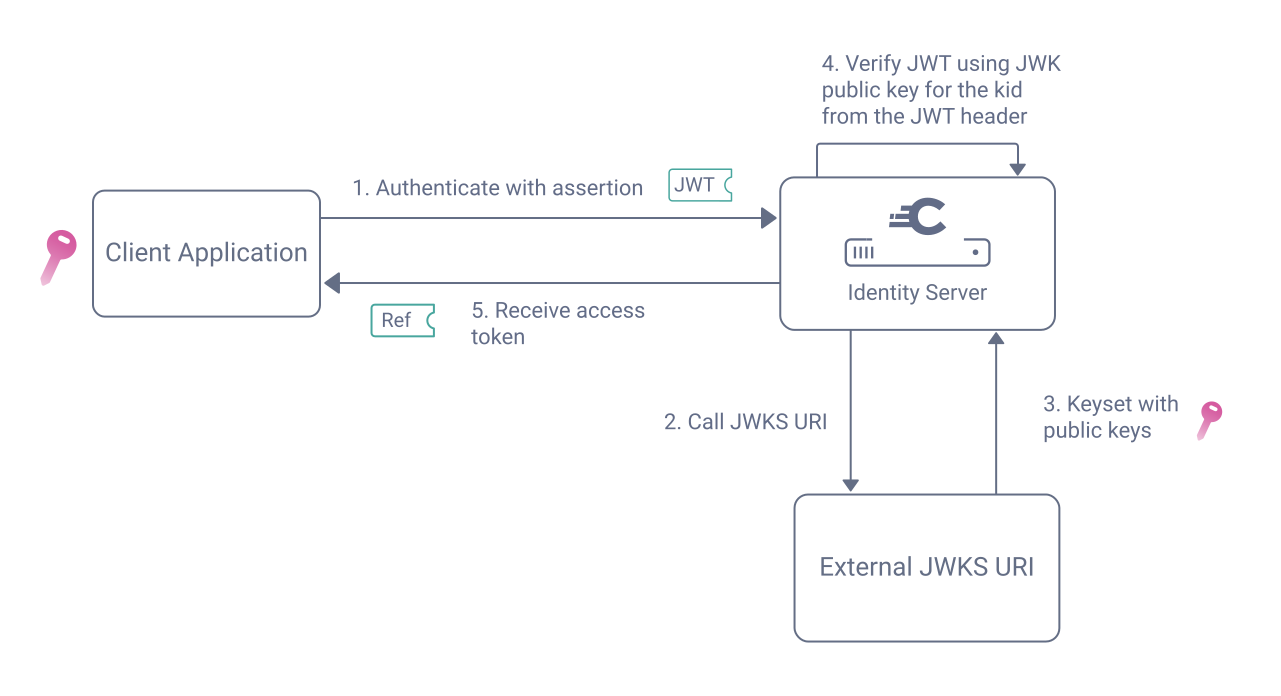
Issue Service Account Tokens
The following YAML shows an example of how a workload can request a service account token using the Kubernetes Service Account Token Volume Projection feature. For the Curity Identity Server to accept the service account token, set the token's audience to the external endpoint of the Curity Identity Server at which the workload authenticates.
apiVersion: v1kind: ServiceAccountmetadata:name: workload-client---apiVersion: apps/v1kind: Deploymentmetadata:name: workload-clientspec:replicas: 1selector:matchLabels:app: workload-clienttemplate:metadata:labels:app: workload-clientspec:serviceAccountName: workload-clientcontainers:- name: workload-clientimage: client:1.0volumeMounts:- mountPath: /var/run/secrets/kubernetes.io/serviceaccountname: jwt-workload-credentialvolumes:- name: jwt-workload-credentialprojected:sources:- serviceAccountToken:path: assertionexpirationSeconds: 3600audience: 'https://login.curitydemo.example/oauth/v2/oauth-token'
In this example, the path /var/run/secrets/kubernetes.io/serviceaccount/assertion is the path to the file to which Kubernetes issues service account tokens. If you decode the JWT, its header and payload contain content similar to the following.
{"alg": "RS256","kid": "amfKVpyk2xBM9LZ3cIshwsmgNTvbpJS4l_Z_SxCur_8"}{"aud": ["https://login.curitydemo.example/oauth/v2/oauth-token"],"exp": 1763380172,"iat": 1763376572,"iss": "https://kubernetes.default.svc.cluster.local","jti": "cf0845fa-e075-41af-9b0b-2a3b94fb331c","kubernetes.io": {"namespace": "applications","node": {"name": "curitydemo-worker","uid": "b13fc143-6a3b-44b7-bb38-58d3e27e665a"},"pod": {"name": "workload-client-86945585f4-4vp5q","uid": "b887b913-d942-4e81-ad63-8baf1d829c7e"},"serviceaccount": {"name": "workload-client","uid": "513d3d79-a34a-4ae6-819d-d8ea58c51c09"}},"nbf": 1763376572,"sub": "system:serviceaccount:applications:workload-client"}
Note down the alg header as well as the sub and iss claims. You need this content later in the tutorial when registering the workload as an OAuth client.
Before the workload can use a service account token to authenticate at endpoints of the Curity Identity Server, you must complete some JWKS URI configuration and correctly register an OAuth client.
Prepare the JWKS URI
When the Curity Identity Server receives a service account token, it needs a way to retrieve the verification keys for the service account token issuer. Use the following command to tell Kubernetes to expose the JWKS URI to internal workloads including the Curity Identity Server.
cat <<EOF | kubectl apply -f -apiVersion: rbac.authorization.k8s.io/v1kind: ClusterRoleBindingmetadata:name: k8s-jwks-uriroleRef:apiGroup: rbac.authorization.k8s.iokind: ClusterRolename: system:service-account-issuer-discoverysubjects:- kind: Groupname: system:unauthenticatedEOF
To ensure that the Curity Identity Server trusts the HTTPS certificate of the JWKS URI, use a command similar to the following to get the certificate for Kubernetes' root certificate authority.
kubectl get configmap/kube-root-ca.crt -o jsonpath='{.data.ca\.crt}'
In the Admin UI, navigate to Facilities → Keys and Cryptography → Trust Anchors → Server Trust Stores and add a new entry, pasting in the certificate's text. Next, navigate to Facilities → HTTP Clients and add a new HTTP client. Select the Use Trust Store option and accept all other defaults.
Automating JWKS URI Settings
During deployments you can automate the trust store configuration with parameterized XML of the following form.
<config xmlns="http://tail-f.com/ns/config/1.0"><facilities xmlns="https://curity.se/ns/conf/base"><http><client><id>workload_trust_client</id><tls><use-truststore>true</use-truststore></tls></client></http><crypto><ssl><server-truststore><server-certificate><id>workload_root_ca</id><size>2048</size><keystore>#{ENCODED_ROOT_CA}</keystore><type>rsa</type></server-certificate></server-truststore></ssl></crypto></facilities></config>
Use the following command to populate the ENCODED_ROOT_CA configuration parameter.
ENCODED_ROOT_CA=$(kubectl get configmap/kube-root-ca.crt -o jsonpath='{.data.ca\.crt}' | openssl base64 | tr -d '\n')
OAuth Client Registration
In the Admin UI, navigate to Profiles → Token Service → Clients and create an OAuth client. Add the client capabilities, to represent the OAuth flows that the client uses. For the purpose of this tutorial choose the Client Credentials capability.
Select jwks-uri as the authentication method. When prompted, enter the Kubernetes JWKS URI and the HTTP client that uses the trust store. Next, select the Enable Custom Assertion JWT Validation option and enter the issuer, which you can find from the iss claim in a service account token.
Next, navigate to Profiles → Token Service → General → Client Settings → Client Authentication and enable the option Asymmetrically Signed JWT. Select the algorithm that matches the JWT header of the service account token, such as RS256. Under Client ID Mappings, map the technical sub claim in the service account token to the client ID of your client. The client ID is the name you chose when creating the client:
The following XML provides example settings that you could save to an XML file and import into the Admin UI using the Changes → Upload menu option.
<config xmlns="http://tail-f.com/ns/config/1.0"><profiles xmlns="https://curity.se/ns/conf/base"><profile><id>token-service</id><type xmlns:as="https://curity.se/ns/conf/profile/oauth">as:oauth-service</type><settings><authorization-server xmlns="https://curity.se/ns/conf/profile/oauth"><scopes><scope><id>reports</id><description>Example reports scope</description></scope></scopes><client-authentication><asymmetrically-signed-jwt><signature-algorithm>RS256</signature-algorithm></asymmetrically-signed-jwt><using-jwt><client-id-mappings><client-id-mapping><sub>system:serviceaccount:applications:workload-client</sub><client-id>jwt_assertion_client</client-id></client-id-mapping></client-id-mappings></using-jwt></client-authentication><client-store><config-backed><client><id>jwt_assertion_client</id><jwks-uri><uri>https://kubernetes.default.svc/openid/v1/jwks</uri><http-client>workload_trust_client</http-client></jwks-uri><assertion-jwt-validation><issuer>https://kubernetes.default.svc.cluster.local</issuer></assertion-jwt-validation><access-token-ttl>900</access-token-ttl><audience>api.curitydemo.example</audience><scope>reports</scope><capabilities><client-credentials/></capabilities><properties><property><key>at_issuer</key><value>jwt</value></property></properties></client></config-backed></client-store></authorization-server></settings></profile></profiles></config>
Run an OAuth Flow
The workload can now send an HTTP request with the service account token to authenticate at endpoints of the Curity Identity Server. The following example shows how a workload in a Kubernetes cluster can load the current service account token and send it to authenticate at the token endpoint.
JWT_ASSERTION="$(cat /var/run/secrets/kubernetes.io/serviceaccount/assertion)"curl -s -X POST http://curity-idsvr-runtime-svc.curity:8443/oauth/v2/oauth-token \-H 'Content-Type: application/x-www-form-urlencoded' \-d 'grant_type=client_credentials' \-d "client_assertion=$JWT_ASSERTION" \-d 'client_assertion_type=urn:ietf:params:oauth:client-assertion-type:jwt-bearer' \-d 'scope=reports' | jq -r
On success, the workload receives a scoped access token that it can send to APIs, to gain access to authorized business resources.
{"access_token": "eyJraWQiOiItMTMyNzIzNjAwMCIsIng1dCI6Ijd2Y1NWS3BPWWU ...","scope": "reports","token_type": "bearer","expires_in": 900}
Example Deployment
The GitHub repository link at the top of this page enables you to run a number of workload identity deployments on a local computer. The first deployment uses the techniques that this tutorial explains. The related resources are in the folder 1-kubernetes-service-account-tokens. You can deploy a working local system with the following commands.
./1-create-cluster.sh./2-deploy-curity-identity-server.sh./3-deploy-application-workloads.sh
For full details on the deployment's prerequisites and usage, see the GitHub repository's README files.
Once the deployment completes, you can remote to the client workload and run a hardened Client Credentials Flow as illustrated above, to exchange a Kubernetes service account token for an OAuth access token.
Conclusion
Modern cloud native platforms provide built-in features to issue short-lived workload credentials, to enable strong client authentication between backend components. The Curity Identity Server enables you to combine strong client authentication (to prevent impersonation) with OAuth authorization (to ensure the correct level of access).

Join our Newsletter
Get the latest on identity management, API Security and authentication straight to your inbox.

Start Free Trial
Try the Curity Identity Server for Free. Get up and running in 10 minutes.
Start Free TrialWas this helpful?